
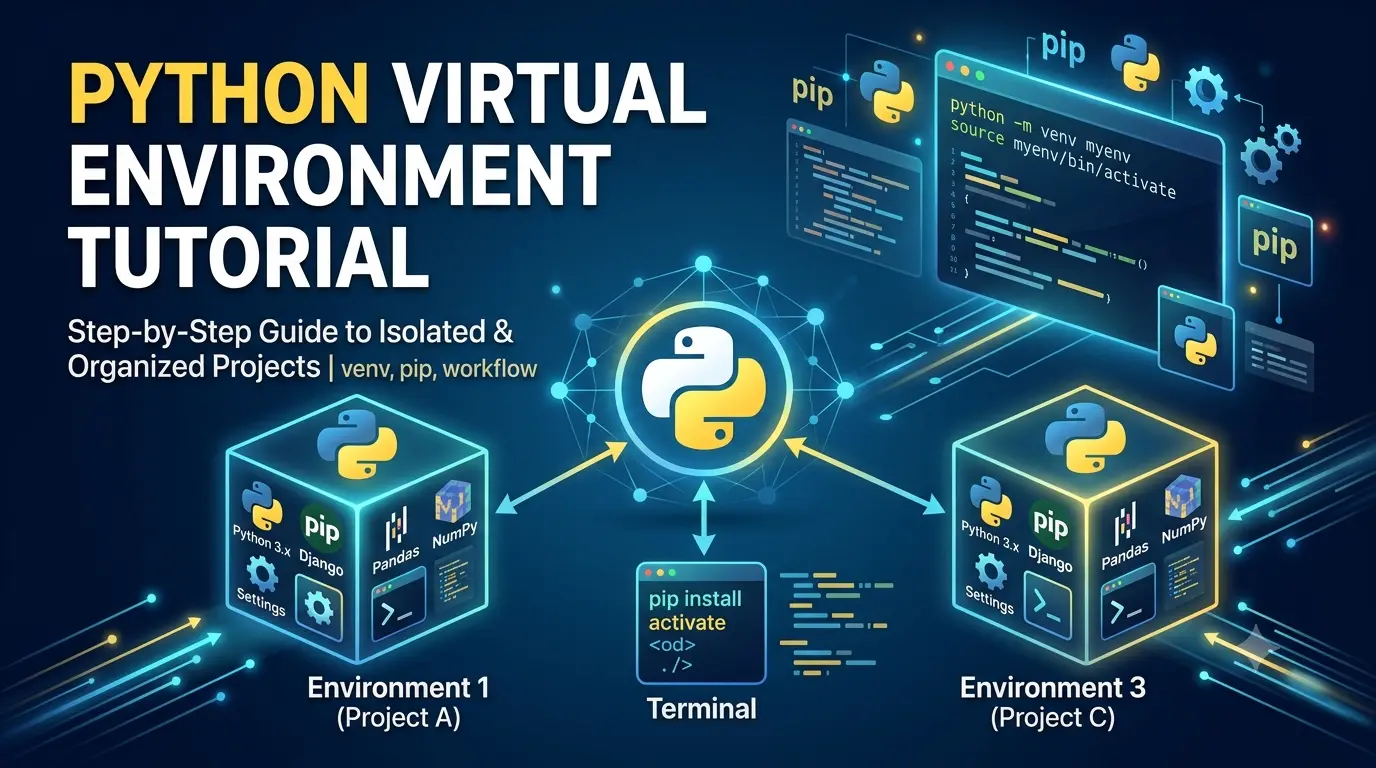
A Python virtual environment allows you to create an isolated environment for each project. This prevents conflicts between package versions used by different projects. A Python virtual environment is an isolated workspace that allows you to manage project-specific dependencies without affecting the system-wide Python installation or other projects.This tutorial provides a step-by-step guide for Windows users on how to install Python, create and activate a virtual environment, install and manage packages using pip. By following this guide, you can maintain clean, organized, and reproducible Python development environments for all your projects.
Step 1: Install Python
- Download Python from:
https://www.python.org/downloads/ - During installation, check:✅ Add Python to PATH
- Click Install Now.
Step 2: Verify Python Installation
Open Command Prompt (Win + R → cmd).
Check Python version:
python --versionor
py --versionExample:
Python 3.12.5Step 3: Navigate to Your Project
Example:
cd D:\Projects\MyPythonProjector
cd C:\Users\YourName\Documents\PythonProjects\DemoStep 4: Create a Virtual Environment
Run:
python -m venv venvor
py -m venv venvThis creates a folder named:
venv/Project structure:
MyPythonProject/
│
├── venv/
├── main.py
Step 5: Activate the Virtual Environment
Command Prompt (CMD)
venv\Scripts\activateYou will see:
(venv) C:\Projects\MyPythonProject>PowerShell
venv\Scripts\Activate.ps1If you get an execution policy error:
Set-ExecutionPolicy -Scope Process -ExecutionPolicy BypassThen activate again:
venv\Scripts\Activate.ps1Git Bash
source venv/Scripts/activateUseful Commands
| Task | Command |
|---|---|
| Check Python version | python --version |
| Check pip version | pip --version |
| Create virtual environment | python -m venv venv |
| Activate (CMD) | venv\Scripts\activate |
| Activate (PowerShell) | venv\Scripts\Activate.ps1 |
| Activate (Git Bash) | source venv/Scripts/activate |
| Install package | pip install package_name |
| List installed packages | pip list |
| Save dependencies | pip freeze > requirements.txt |
| Install dependencies | pip install -r requirements.txt |
| Deactivate environment | deactivate |
| Delete environment | rmdir /s /q venv |
Example Workflow
mkdir MyProject
cd MyProject

python -m venv venv

venv\Scripts\activate
Best Practices
- Create a separate virtual environment for each Python project.
- Do not commit the
venvfolder to Git. Add it to your.gitignorefile:venv/ - Always activate the virtual environment before running your project or installing packages.